Finish every module, pass the quiz, unlock 10% off
Module 1 of 5
What TaHoma Beecon is
Somfy's names for the hub and what one unit runs. After this module you can tell whether one Beecon covers the job.
4 lessons, then a scenario check.

Shade Motors School · Program It · 101
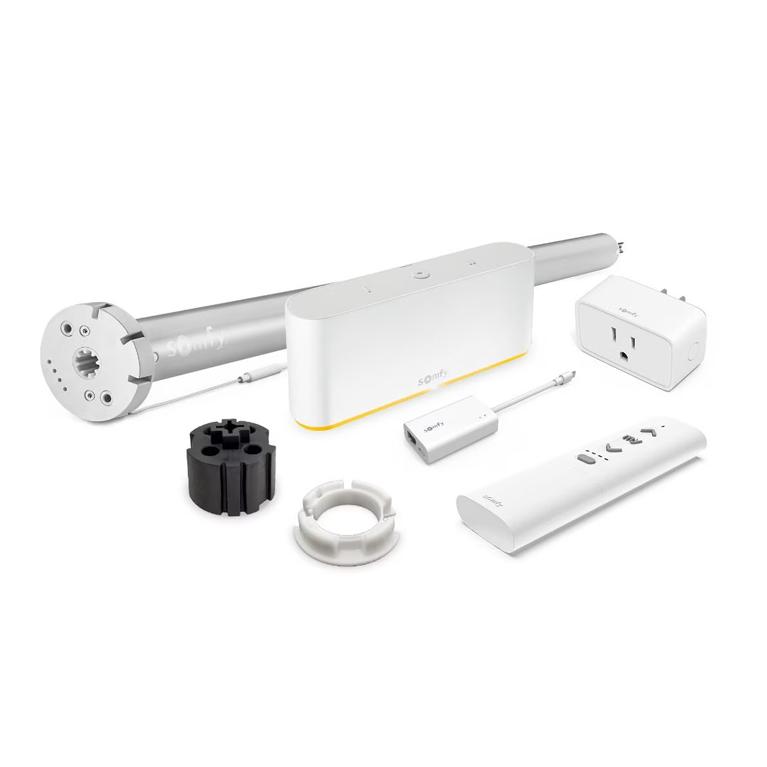
TaHoma Beecon (1811731) puts RTS shades in the TaHoma app with scenes, schedules and voice control. Learn how Somfy separates it from TaHoma switch, what to prepare, how to bring it online and how to add each shade.
Pass the quiz to unlock 10% off your first ShadeMotorsDirect order. Your code and certificate arrive by email from Shade Motors School.
You will be able to: Set up a Somfy TaHoma Beecon and add your RTS shades to the app.
Inside this course
Finish every module, pass the quiz, unlock 10% off
Module 1 of 5
Somfy's names for the hub and what one unit runs. After this module you can tell whether one Beecon covers the job.
4 lessons, then a scenario check.
What TaHoma Beecon is
Somfy sells part 1811731 as the TaHoma Gateway and labels it TaHoma Gateway (Beecon) in its app chart. Somfy's 2022 spec sheet names it the TaHoma RTS/Zigbee Smartphone and Tablet Interface.
Watch forOwners search for all three names. Each one points to the same 1811731 hub.

What TaHoma Beecon is
Somfy lists up to 40 RTS channels and up to 50 Zigbee devices per Beecon. One install holds up to 40 scenes with schedules.
ExampleA house with 18 RTS shades on their own channels fits on one Beecon with channels to spare.
What TaHoma Beecon is
Up to 10 Beecon interfaces can join as zone controllers to extend RTS range. Somfy limits multi-zone control to RTS.
On the jobOn a long house, add a second Beecon at the far end as its own zone.
What TaHoma Beecon is
Beecon runs on a 5V 2A USB supply. Somfy rates it IP30 for indoor use from 0 to 35 C and says to use the power supply included with the interface.
Watch forKeep the supply from the box with the hub. Somfy names that supply, not a spare phone charger.
Check yourself
Hint: Compare the shade count with the RTS channel limit.
Yes. Somfy lists up to 40 RTS channels per Beecon.
Finish every module, pass the quiz, unlock 10% off
Module 2 of 5
How Somfy separates its two TaHoma hubs. After this module you can tell an owner which hub they have and what it supports.
3 lessons, then a scenario check.
Beecon or TaHoma switch
Both hubs run 40 RTS channels. Somfy lists 50 Zigbee devices for Beecon and 60 Zigbee products for TaHoma switch, which Somfy calls its latest smart home hub.
On the jobRead the part number on the hub or its box. 1811731 is the Beecon and 1871037 is the TaHoma switch.
Beecon or TaHoma switch
Somfy states that Apple Home is not compatible with TaHoma Beecon. Somfy supports Apple Home only on TaHoma switch with select Zigbee motors. Beecon works with Amazon Alexa and Google Home.
Watch forNever promise Apple Home on a Beecon job. Plan for Alexa or Google Home.
Beecon or TaHoma switch
Somfy says both TaHoma models can power the TaHoma by Somfy app. Owners moving from the TaHoma North America app keep their devices, rooms, scenes and schedules.
ExampleAn owner with an older Beecon logs in to the new app with the same account and confirms which scenes move.
Check yourself
Hint: Check the voice control row for Beecon.
Somfy states Apple Home is not compatible with TaHoma Beecon. Amazon Alexa and Google Home work.
Finish every module, pass the quiz, unlock 10% off
Module 3 of 5
The prep Somfy asks for so setup does not stall. After this module your motors, network and hub location will be ready.
4 lessons, then a scenario check.
Before you plug it in
Somfy requires every RTS motor to be fully operational with limits set before TaHoma programming. Each RTS product must already be paired to an RTS remote.
On the jobRun each shade up and down on its own remote before you open the Beecon box.
Before you plug it in
Beecon needs an internet connection for setup and for control of RTS products. Use a 2.4 GHz Wi-Fi network only, or Ethernet, which Somfy calls more reliable and stable than Wi-Fi.
Watch forA router that broadcasts only 5 GHz will stall setup. Turn on the 2.4 GHz band first.
Before you plug it in
Place each Beecon within 25 to 35 ft of the RTS devices it controls and at least 30 cm from the internet modem. Keep it off metal surfaces and out of cable ducts.
ExampleA shelf in the room with the shades beats a metal rack beside the modem.
Before you plug it in
Note the TaHoma PIN before you start. Somfy prints it as three series of digits on the interface and on the packaging, and the app asks for it at activation.
On the jobPhotograph the PIN label before the hub goes up on a high shelf.
Check yourself
Hint: Somfy names one thing that must be done on every motor.
No. Finish those motors first. Somfy requires every RTS motor to run with limits set before TaHoma programming.
Finish every module, pass the quiz, unlock 10% off
Module 4 of 5
Activation, Wi-Fi setup mode and the status light. After this module you can bring a Beecon online and read its LED.
4 lessons, then a scenario check.
Bring the Beecon online
In the app, create an account, select Start Activation, then Activate TaHoma, and enter the PIN. Somfy emails a link that you click within 24 hours to finish activation.
Watch forNo email yet? Somfy says to check the junk or spam folder before the 24 hours run out.
Bring the Beecon online
To join Wi-Fi, press and hold the configuration button on the back of the Beecon for 3 seconds until the LED turns blue. Then remove the base and scan the QR code.
On the jobJoin your phone to the same Wi-Fi network the Beecon will use before you press the button.
Bring the Beecon online
Blue means direct Wi-Fi setup mode. Red means powered but not connected to the cloud server. Orange means starting up. Green means connected to the network.
ExampleAfter you select Join, watch the LED change from red to green.
Bring the Beecon online
Somfy's guide connects Beecon by Ethernet through the TaHoma Ethernet Adaptor 1870470, sold separately. The LED goes red to green, shows red then orange during an update, and ends green.
Watch forSomfy sells the adaptor separately. Confirm one is on site before you plan the wired route.
Step by step
Somfy's TaHoma RTS programming guide (version 1.2) lists these steps in the TaHoma North America app. Have the Wi-Fi password and the Beecon within reach.
8 steps, one per screen.
Step 1 of 8
The phone shows the 2.4 GHz network as connected.
Step 2 of 8
The app moves on to the connection choice.
Step 3 of 8
The app asks for the Wi-Fi password.
Step 4 of 8
The app asks you to put the Beecon in setup mode.
Step 5 of 8
The LED turns blue.
Step 6 of 8
The app reads the code.
Step 7 of 8
The LED changes from red to green.
Step 8 of 8
The Beecon is online and ready for RTS products.
Check yourself
Hint: The code sits under the hub.
Select Next, remove the base and scan the QR code, then select Join and watch the LED go from red to green.
Finish every module, pass the quiz, unlock 10% off
Module 5 of 5
Pair each RTS shade through its remote, then build scenes and schedules. After this module you can hand an owner a working app.
5 lessons, then a scenario check.
Add your RTS shades
In the app, add an RTS product, name it and pick the remote channel. Press and hold the programming button on the back of that remote until the motor moves up and down briefly.
Watch forSelect Next only after the motor jogs. Somfy says not to move on until it responds.

Add your RTS shades
On a multi-channel remote, select the channel that runs the shade before you press the programming button. The Telis 16 RTS Pure carries 16 channels.
ExampleThe living room shade sits on channel 3. Set the remote to channel 3, then press its programming button.

Add your RTS shades
Somfy says an RTS device programmed to a channel takes commands only from its own TaHoma interface. In a multi-gateway system, scan the QR code of the Beecon closest to the shade.
On the jobLabel each Beecon by zone before you pair.
Add your RTS shades
Build a scene from RTS products and commands, then schedule it at a set time, at sunrise or at sunset. Scheduled scenes keep running at their set time after the internet drops.
ExampleClose the west shades at sunset every day with one scheduled scene.
Add your RTS shades
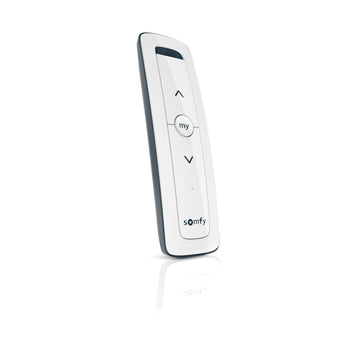
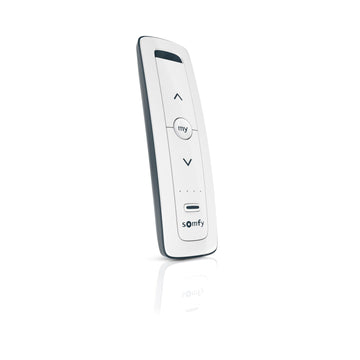
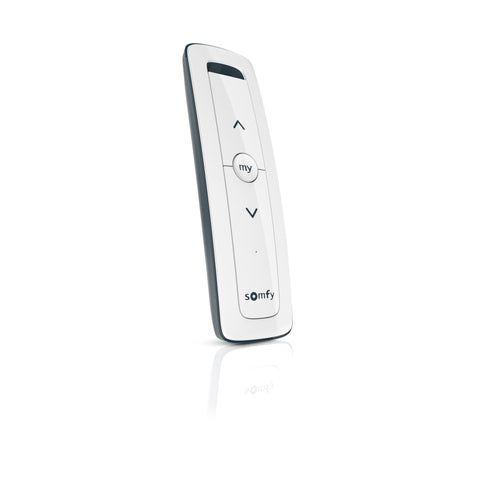
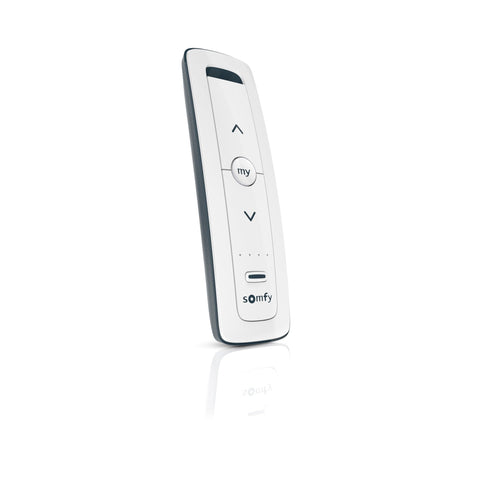
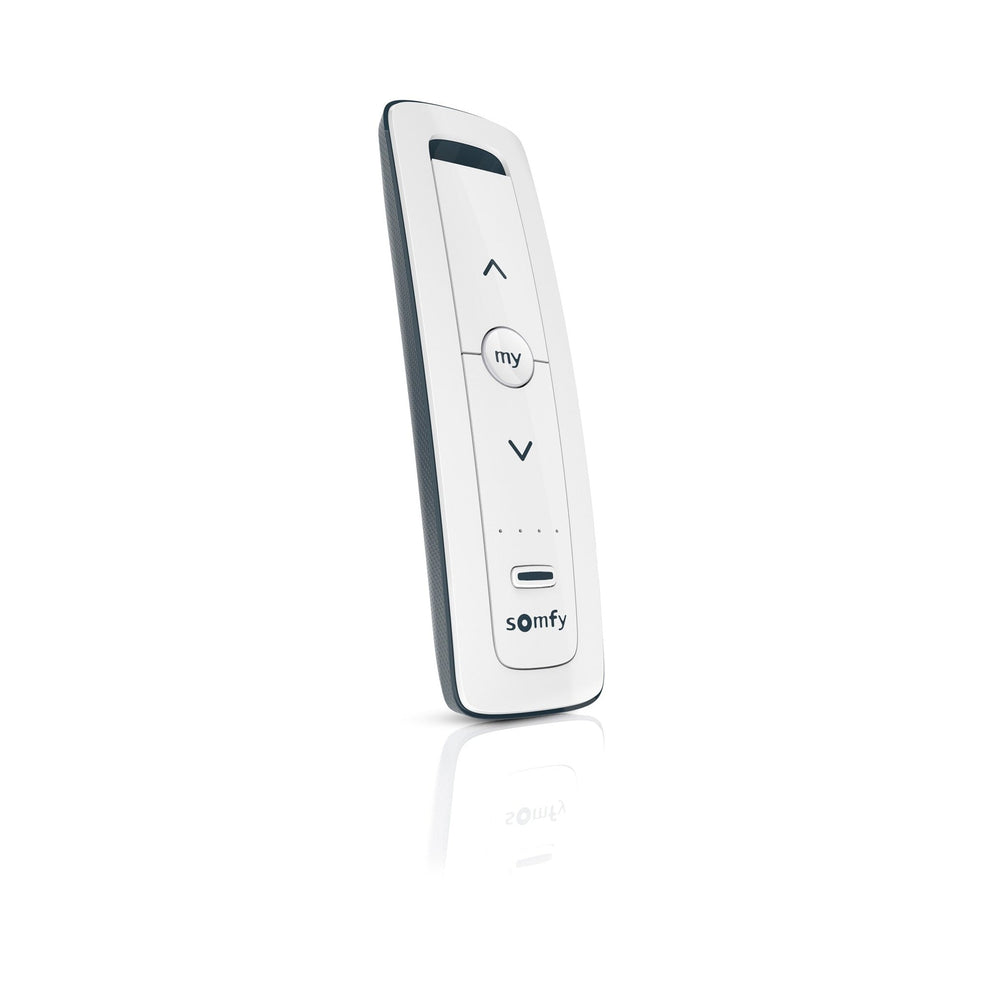
Somfy states TaHoma does not support local control of RTS products without an internet connection. Leave each shade's paired RTS remote in the room, such as a Situo 5 RTS Pure II.
On the jobHand over the remotes with the app login.
Check yourself
Hint: Wait for the motor to respond.
No. Somfy says to select Next only after the motor jogs up and down.
Final quiz
Each question is a real job scenario, one per screen. Stuck? Tap the hint. You see the right answer and why right after you choose. Pass and you get a printable certificate.
Score 80% to unlock 10% off your first ShadeMotorsDirect order.
Question 1 of 10
On the job: A homeowner has 30 RTS shades, each on its own channel.
Hint: Check the RTS channel limit.
Somfy lists up to 40 RTS channels per Beecon.
Question 2 of 10
On the job: A large house needs RTS control in several zones.
Hint: Somfy gives one number for zone controllers.
Somfy allows up to 10 interfaces as zone controllers, for RTS only.
Question 3 of 10
On the job: An owner wants to run the Beecon shades from Apple Home.
Hint: Look at the voice control row for Beecon.
Somfy states Apple Home is not compatible with TaHoma Beecon.
Question 4 of 10
On the job: An owner moves from the TaHoma North America app to the TaHoma by Somfy app.
Hint: Somfy lists what moves on its own.
Somfy transfers paired devices, rooms, scenes and schedules to the new app.
Question 5 of 10
On the job: You arrive and two RTS shades have no limits set yet.
Hint: Somfy wants the motors ready before the hub.
Somfy requires every RTS motor to run with limits set before TaHoma programming.
Question 6 of 10
On the job: The router broadcasts only a 5 GHz network.
Hint: Somfy names one Wi-Fi band.
Somfy requires 2.4 GHz Wi-Fi only, or Ethernet.
Question 7 of 10
On the job: The owner wants the Beecon on a metal rack beside the modem.
Hint: Somfy gives two distances.
Somfy places it within 25 to 35 ft of the RTS devices, 30 cm or more from the modem, away from metal.
Question 8 of 10
On the job: The app asks you to put the Beecon into Wi-Fi setup mode.
Hint: The button is on the hub itself.
Somfy says to hold the configuration button for 3 seconds until the LED turns blue.
Question 9 of 10
On the job: The Beecon LED shows red after setup.
Hint: Green is the colour you want.
Somfy defines red as powered but not connected to the cloud server.
Question 10 of 10
On the job: You are adding an RTS shade in the app.
Hint: Use the control the shade already answers to.
Somfy pairs RTS products through the programming button on the paired remote.
Almost done
Your score shows on the next screen. If you pass, your certificate and 10% code go to this email. They come from Shade Motors School (school@shademotorsdirect.com). Check Promotions, Updates or Spam if you don't see them.
Parts used in this course
Parts used in this course
Your cart is currently empty.
Not sure where to start? Try these collections: