Skip to content
Genuine Somfy Motors & Parts for Roller Shades

Shade Motors School · Program It · 101

How to Set a Somfy Telis 1 Chronis RTS Timer

The Somfy Telis 1 Chronis RTS is a handheld remote with a timer that opens and closes RTS shades on a daily schedule. Learn to add it to a motor, set the clock and the open and close times, and switch between automatic and manual mode.

  • 6 modules
  • 15 min
  • 10-question quiz
  • Free certificate
  • Unlocks 10% off
10% OFF

Pass the quiz to unlock 10% off your first ShadeMotorsDirect order. Your code and certificate arrive by email from Shade Motors School.

You will be able to: Set up a Somfy Telis 1 Chronis RTS timer to open and close an RTS shade on schedule.

Start the course

Inside this course

6 modules, one idea at a time

  1. What the Chronis doesYou will be able to explain what the Telis 1 Chronis RTS automates, how many commands it sends a day, and which products it runs.4 lessons · scenario check
  2. Buttons, display and batteriesYou will be able to find each button on the Chronis, read what the display tells you, and fit the right batteries.5 lessons · scenario check
  3. Add the Chronis to a motorYou will be able to add the Chronis to an RTS product that already answers another control, and remove it the same way.4 lessons · scenario check
  4. Set the clock and work daysYou will be able to open the settings, enter the date and time, pick the summer time area and mark the work days.5 lessons · scenario check
  5. Set the open and close timesYou will be able to store an open or close time with the quick method, edit it to the minute, and delete a command the owner no longer wants.4 lessons · 8-step walkthrough · scenario check
  6. Run it day to dayYou will be able to switch between manual and automatic mode, stop a running command, use simulated presence and sort out a schedule that runs at the wrong time.4 lessons · scenario check
  7. Final quiz10 real job scenarios, one per screen, each with a hint if you need it. Score 80% to pass and get your certificate.

Pass = 10% off

Finish every module, pass the quiz, unlock 10% off

Module 1 of 6

What the Chronis does

You will be able to explain what the Telis 1 Chronis RTS automates, how many commands it sends a day, and which products it runs.

4 lessons, then a scenario check.
What the Chronis does

A remote with a timer

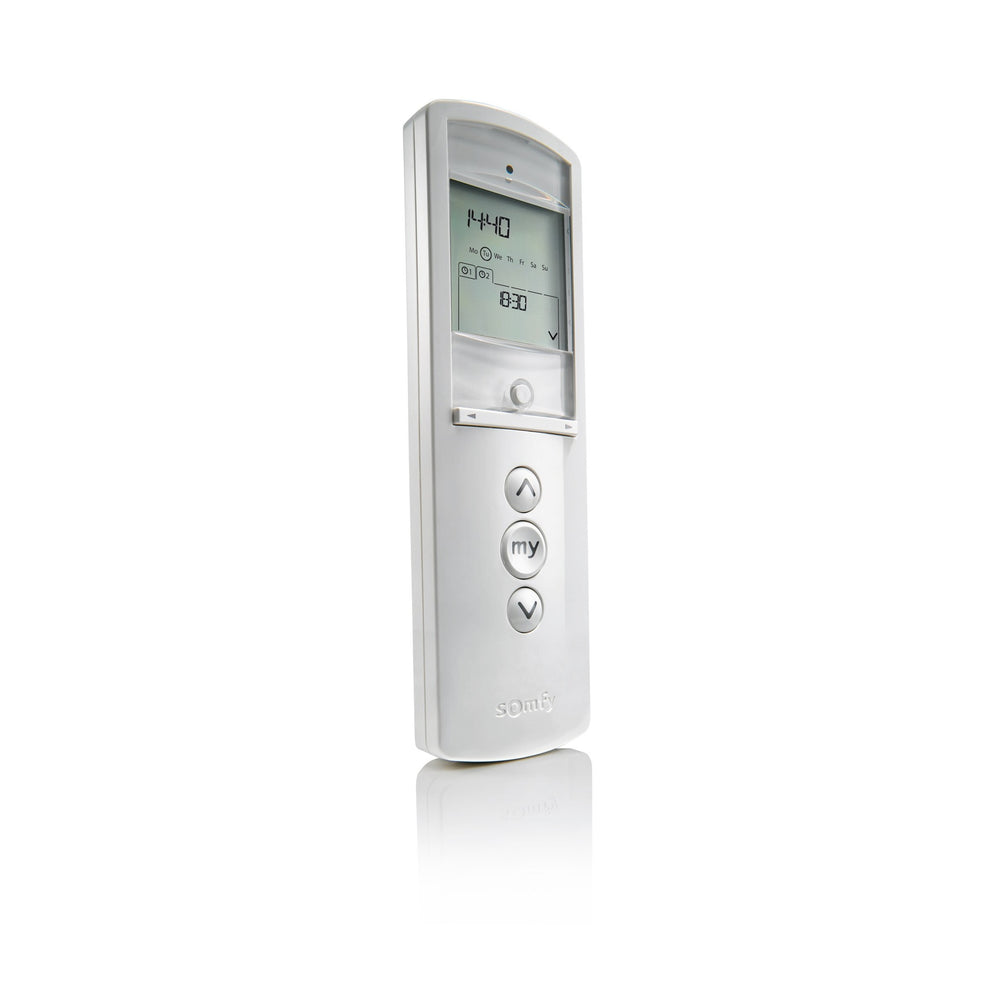
Somfy describes the Telis 1 Chronis RTS (1805237) as a handheld remote with a built-in programmable timer. It combines a single-channel handheld control with a daily schedule.

ExampleA homeowner wants the bedroom shade to open each morning without touching it. The Chronis runs that schedule from the handheld.

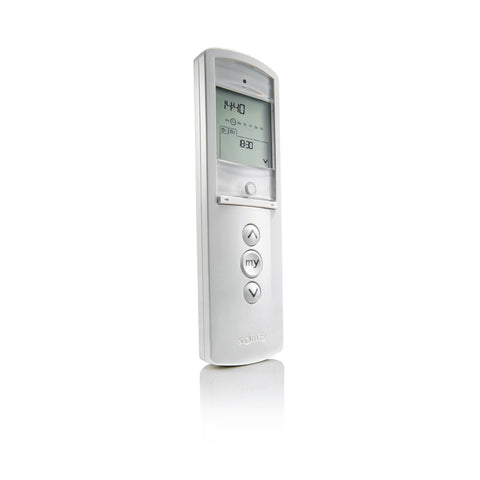
Somfy Telis 1 Chronis RTS Timer (Pure) (1805237)
Telis 1 Chronis RTS Pure (1805237)

What the Chronis does

One up and one down a day

In automatic mode the Chronis sends one up command and one down command each day. Somfy sets the factory times at 7:30am UP and 8:00pm DOWN.

Watch forIf the owner wants other times, change them before you hand the remote over.

ONE UP, ONE DOWN A DAY12am12pm12amUP7:30amDOWN8:00pmSomfy factory default times

What the Chronis does

Work days and rest days

From the factory every day shares the same times. You can split the week into work days, shown circled, and rest days, not circled. Each group gets its own up and down times.

ExampleCircle Monday to Friday as work days so the weekend shades follow their own schedule.

WORK DAYS AND REST DAYSMonTueWedThuFriSatSunWork days (circled)own up and down timesRest daysown times

What the Chronis does

It runs RTS products

Somfy lists the Chronis as compatible with all motorized Radio Technology Somfy (RTS) applications, including awnings and interior blinds, draperies and shades.

On the jobA Sonesse 40 RTS shade motor carries RTS, so the Chronis can run it. Check the motor is RTS before you sell the timer.

Somfy Sonesse 40 RTS 406A2 RH with Fast Connector (1240381)
Sonesse 40 RTS 406A2 RH with Fast Connector (1240381)

Check yourself

A homeowner asks if one Chronis can open the shade at sunrise and again after lunch every day. What do you tell them?

Finish every module, pass the quiz, unlock 10% off

Module 2 of 6

Buttons, display and batteries

You will be able to find each button on the Chronis, read what the display tells you, and fit the right batteries.

5 lessons, then a scenario check.

Buttons, display and batteries

The setup buttons

The selection button confirms entries and switches between manual and automatic mode. The arrow buttons scroll and change values.

On the jobMost setup screens need only these two buttons.

THE SETUP BUTTONSdisplayselectionarrowsUpstop/favoriteDownPROGselectionconfirms entries, switches modesarrowsscroll and change values

Buttons, display and batteries

Move and program buttons

Up opens. Down closes. The stop/favorite button stops movement or sends the product to its favorite position. PROG adds or deletes a product.

ExampleWith an intermediate position programmed, a brief press of stop/favorite sends the shade there.

MOVE AND PROGRAMdisplayselectionarrowsUpstop/favoriteDownPROGUpopensstop/favoritestops, or goes to favoriteDownclosesPROGadds or deletes a product

Buttons, display and batteries

Read the display

In automatic mode the screen shows the current time and the next scheduled automatic command. In manual mode the command time reads OFF.

Watch forOFF on the screen means the schedule is switched off. The shades will not move on their own until you return to automatic.

TWO MODESManualOFFone-off commandsschedule offAutomatictime + nextruns the schedulebuttons still workbrief press of selection switches modes

Buttons, display and batteries

Batteries

The Chronis takes 2 AAA (LR3) batteries behind the back cover. Somfy says never use rechargeable batteries. Replace them when the low battery symbol appears on the display.

On the jobCarry two AAA (LR3) cells when you visit a Chronis owner, and leave the rechargeables in the van.

POWERAAA (LR3)AAA (LR3)never userechargeablebatteriesreplace when the low battery symbol shows

Buttons, display and batteries

Before you mount it

Somfy says to check the radio range before you install the wall mount. Never mount the Chronis on or near metal surfaces, since metal may reduce the radio range.

Watch forTest the shade from the planned mount spot first.

BEFORE YOU MOUNT IT1. Test the rangefrom the mount spot2. Avoid metalon or near metalmay cut the range

Check yourself

You arrive and the display reads OFF where the next command time should be. Why is the shade not moving on schedule?

Finish every module, pass the quiz, unlock 10% off

Module 3 of 6

Add the Chronis to a motor

You will be able to add the Chronis to an RTS product that already answers another control, and remove it the same way.

4 lessons, then a scenario check.

Add the Chronis to a motor

Start from a paired control

You add the Chronis through an individual RTS control that already runs the product, such as a Situo 1 RTS remote or a Smoove 1 RTS wall switch.

ExampleThe shade already answers a Situo 1. You use that remote's PROG button for this job.

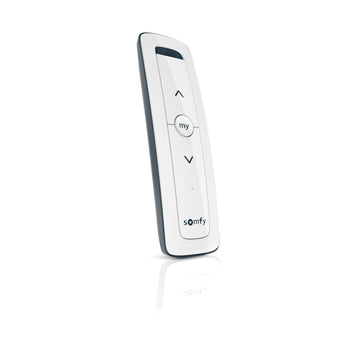
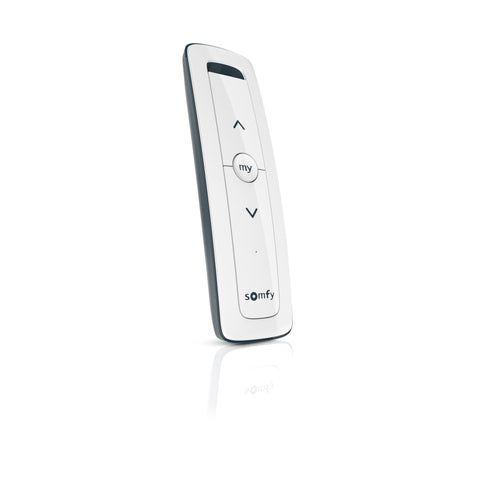
Somfy Situo 1 Channel RTS Pure Remote (1870571)
Situo 1 RTS Pure II (1870571)

Add the Chronis to a motor

Step 1: switch to manual

If the Chronis is in automatic mode, briefly press its selection button to switch to manual mode.

Watch forCheck the screen reads OFF before you move on.

TWO MODESManualOFFone-off commandsschedule offAutomatictime + nextruns the schedulebuttons still workbrief press of selection switches modes

Add the Chronis to a motor

Step 2: hold PROG on the paired control

Press and hold PROG on the paired control until the product moves back and forth. Somfy keeps programming mode active for 2 minutes.

On the jobHold PROG on the paired control and watch the shade, not the control. The jog tells you programming mode is on.

Somfy Smoove 1 RTS Pure II wall switch with white frame, SKU 1871361
Smoove 1 RTS Pure II (1871361)

Add the Chronis to a motor

Step 3: brief PROG on the Chronis

Briefly press PROG on the Chronis. The product moves and is assigned to the Chronis, or deleted if it was already assigned. Repeat steps 1 to 3 for each other product.

Watch forThe same three steps remove a product the Chronis already runs. Run them once per shade so you do not undo one.

ADD IT IN THREE STEPS1Chronis manualbrief pressselection2Hold PROGon paired controluntil it jogs3Brief PROGon the Chronisproduct jogs

Check yourself

You want one Chronis to run three bedroom shades, each with its own Situo 1. How do you add them?

Finish every module, pass the quiz, unlock 10% off

Module 4 of 6

Set the clock and work days

You will be able to open the settings, enter the date and time, pick the summer time area and mark the work days.

5 lessons, then a scenario check.

Set the clock and work days

Opening the settings

Settings mode starts on its own when you first insert the batteries. To reach it later, switch to automatic mode and hold the selection button for more than 7 seconds until SET and YEAR appear.

On the jobSomfy lets you change these settings only in automatic mode, so check the screen does not read OFF.

OPEN THE SETTINGSAutomaticmodeHold selectionmore than 7 sSETYEAR

Set the clock and work days

Seven settings in order

Set YEAR, MONTH, DAY, the hour, the minutes, AREA, then WORK. The arrow buttons change the flashing value. A brief press of the selection button saves it and moves to the next.

ExampleHold an arrow button to scroll faster through the minutes.

SEVEN SETTINGS IN ORDERYEAR1MONTH2DAY3TIMEhour4TIMEmin5AREA6WORK7

Set the clock and work days

AREA handles summer time

Choose US or EU and the Chronis changes between summer and winter time on its own. Choose OFF and you make that change by hand.

ExampleA US home set to US keeps its shade times in step when the clocks change.

AREA AND SUMMER TIMEUSauto changeEUauto changeOFFchange by hand

Set the clock and work days

WORK marks the work days

Use the arrow buttons to circle the work days, then briefly press selection to confirm. Days you leave uncircled become rest days. Press and hold selection to exit; only confirmed settings are saved.

Watch forLeave halfway and only the confirmed settings stay.

WORK DAYS AND REST DAYSMonTueWedThuFriSatSunWork days (circled)own up and down timesRest daysown times

Set the clock and work days

After a long power loss

If the batteries run flat or come out for a long time, you re-enter the general settings. Somfy keeps the automatic commands in memory.

On the jobAfter a battery swap, set the clock first.

AFTER A LONG POWER LOSSGeneral settingsre-enter themclock, AREA, WORKAutomatic commandskept in memory

Check yourself

A homeowner says the shades run an hour off ever since the clocks changed in spring. Which setting do you check?

Finish every module, pass the quiz, unlock 10% off

Module 5 of 6

Set the open and close times

You will be able to store an open or close time with the quick method, edit it to the minute, and delete a command the owner no longer wants.

4 lessons, then a scenario check.

Set the open and close times

Pick the command first

In automatic mode, use the arrow buttons to select the up or down command you want to change. If you split the week, pick it in the work-day or rest-day group.

ExampleTo change the weekend close time, select the rest-day down command first.

THE SETUP BUTTONSdisplayselectionarrowsUpstop/favoriteDownPROGselectionconfirms entries, switches modesarrowsscroll and change values

Set the open and close times

Quick set at the time you want

At the moment you want the command to run, hold Up or Down for more than 10 seconds. SET appears and the command flashes 3 times. Release when SET disappears; the Chronis records the current time.

On the jobStand at the window at the hour the owner wants the shade to close, then hold Down.

QUICK SET AT THE TIME YOU WANT1Select commandarrow buttonsautomatic mode2Hold Up or Downmore than 10 sSET appears3Releasewhen SET goestime stored

Set the open and close times

Edit the hour and minutes

Hold selection until SET appears and EDIT flashes. Brief presses of selection step you to the hour, then the minutes; the arrows change each. A final brief press saves and returns to automatic mode.

Watch forThe step screens after this module walk through each press on its own.

EDIT A COMMANDAutomode1Pickarrows2Holdselection3Briefpress4Hourarrows5Briefpress6Minarrows7Briefpress8

Set the open and close times

Delete a command

After SET appears and EDIT flashes, press an arrow button so DELET flashes. A brief press of selection deletes the command and returns the Chronis to automatic mode.

ExampleAn owner wants the shade to close on schedule and open by hand. Delete the up command.

DELETE A COMMANDSelectcommand1Holdselection2EDITflashes3Arrowbutton4DELETflashes5Briefpress6

Step by step

Edit an automatic command on the Telis 1 Chronis RTS

Somfy's steps for changing the time of an up or down command, one press per screen.

8 steps, one per screen.

EDIT A COMMANDAutomode1Pickarrows2Holdselection3Briefpress4Hourarrows5Briefpress6Minarrows7Briefpress8

Step 1 of 8

If the Chronis is in manual mode, briefly press the selection button.

The Chronis switches to automatic mode.

Step 2 of 8

Press the arrow buttons to select the up or down command you want to edit, in the work-day or rest-day group if you split the week.

The command you chose shows on the display.

Step 3 of 8

Press and hold the selection button until SET appears on the screen.

Programming mode is on and EDIT flashes.

Step 4 of 8

Briefly press the selection button.

The hour of the selected command flashes.

Step 5 of 8

Press the arrow buttons to change the hour.

The flashing hour changes.

Step 6 of 8

Briefly press the selection button to confirm the hour.

The minutes of the selected command flash.

Step 7 of 8

Press the arrow buttons to change the minutes.

The flashing minutes change.

Step 8 of 8

Briefly press the selection button to confirm the time.

EDIT closes and the Chronis returns to automatic mode.

Check yourself

It is the exact time the owner wants the shade to close each evening, and you hold the Chronis in automatic mode. What is the fastest way to store it?

Finish every module, pass the quiz, unlock 10% off

Module 6 of 6

Run it day to day

You will be able to switch between manual and automatic mode, stop a running command, use simulated presence and sort out a schedule that runs at the wrong time.

4 lessons, then a scenario check.
Run it day to day

One press switches modes

A brief press of the selection button switches between manual and automatic mode. Manual mode sends one-off commands and switches off the automatic commands.

On the jobPainters in the room for a week? Switch to manual so the shades stay put, then switch back when they leave.

TWO MODESManualOFFone-off commandsschedule offAutomatictime + nextruns the schedulebuttons still workbrief press of selection switches modes

Run it day to day

Buttons still work in automatic

In automatic mode you can still press Up, stop/favorite or Down. To stop an automatic command while it runs, press the stop button.

ExampleThe shade starts closing on schedule while you clean the glass. Press stop and finish the job.

Somfy Telis 1 Chronis RTS Timer (Pure) (1805237)
Telis 1 Chronis RTS Pure (1805237)

Run it day to day

Simulated presence

In automatic mode, press both arrow buttons together to turn on Simulated presence. It shifts command times at random within 0 to 30 minutes. Press both again, or switch to manual, to turn it off.

Watch forSwitching to manual turns the function off. Turn it back on yourself when you return to automatic.

SIMULATED PRESENCErandom shift, 0 to 30 minprogrammed timeboth arrows together turn it on or off

Run it day to day

When the schedule seems wrong

If a command runs at a different time than programmed, Somfy points to Simulated presence being on. If nothing reacts to any button, check for low batteries or a Chronis that was never added.

On the jobLook for the simulated presence symbol on the screen before you reprogram any times.

WHEN IT MISBEHAVESWrong timesimulated presenceis onNo reactionlow batteries, ornot programmed

Check yourself

The owner says the shades open at slightly different times each morning. What do you check before you touch the programmed times?

Final quiz

10 questions. Score 80% to pass.

Each question is a real job scenario, one per screen. Stuck? Tap the hint. You see the right answer and why right after you choose. Pass and you get a printable certificate.

10% OFF

Score 80% to unlock 10% off your first ShadeMotorsDirect order.

Question 1 of 10

On the job: A homeowner wants the living room shade to open at sunrise and again after lunch every day.

Can one Telis 1 Chronis RTS do that on its schedule?

Question 2 of 10

On the job: You add a new Chronis to a shade and leave the factory times alone.

When will the shade move on its own?

Question 3 of 10

On the job: The owner bought rechargeable AAA cells for the Chronis.

What do you tell them?

Question 4 of 10

On the job: The Chronis screen reads OFF where the next command time should be.

What state is it in?

Question 5 of 10

On the job: The shade already runs from a paired Situo 1, and the new Chronis sits in automatic mode.

What is your first step to add the Chronis?

Question 6 of 10

On the job: You held PROG on the Situo 1 and the shade jogged.

What do you do next?

Question 7 of 10

On the job: The Chronis batteries died over a long holiday and you fit new ones.

What do you need to redo?

Question 8 of 10

On the job: A US homeowner wants the Chronis clock to follow the spring and fall time changes without help.

Which AREA setting do you pick?

Question 9 of 10

On the job: It is the exact time the owner wants the shade to close each evening, and the Chronis is in automatic mode with the down command selected.

What is the quick way to store that time?

Question 10 of 10

On the job: The owner says the shades open at slightly different times each morning.

What is the likely cause?

Almost done

Where should we send your certificate?

Your score shows on the next screen. If you pass, your certificate and 10% code go to this email. They come from Shade Motors School (school@shademotorsdirect.com). Check Promotions, Updates or Spam if you don't see them.

Your name prints on the certificate. You'll also get new course alerts and Somfy tips from ShadeMotorsDirect. Unsubscribe any time.