Skip to content
Genuine Somfy Motors & Parts for Roller Shades

Shade Motors School · Program It · 101

How to Use the Somfy My Button: Set, Change and Delete a Favorite Position

The MY button on a Somfy RTS remote stops a moving shade and sends a still one to a saved favorite position. Learn to set, use, change and delete that position on standard, battery, tilt, drapery and CMO motors.

  • 5 modules
  • 12 min
  • 10-question quiz
  • Free certificate
  • Unlocks 10% off
10% OFF

Pass the quiz to unlock 10% off your first ShadeMotorsDirect order. Your code and certificate arrive by email from Shade Motors School.

You will be able to: Set, use and delete the my favorite position on the Somfy RTS motors in this course.

Start the course

Inside this course

5 modules, one idea at a time

  1. What the MY button doesThe MY button has two jobs, and the shade picks the job by whether it is moving. After this module you can explain both to an owner in one sentence each.3 lessons · scenario check
  2. Set the my positionSomfy uses one short routine to save a favorite stop on its standard RTS motors. After this module you can set the my position on a Sonesse, Altus or Cord Lift CL32 shade.5 lessons · 3-step walkthrough · scenario check
  3. Use, change and delete itOwners call up the favorite every day and sometimes want it moved. After this module you can send a shade to my from anywhere, and delete or replace the position.4 lessons · scenario check
  4. Motors that do it differentlyBattery motors, tilt blinds, drapery motors and RTS CMO awning motors each change part of the routine. After this module you can set a favorite on all four without guessing.5 lessons · scenario check
  5. Pick a control with MYEvery Somfy RTS handheld and wall switch in this course can send shades to their favorite. After this module you can match the control to the room and use it on groups.4 lessons · scenario check
  6. Final quiz10 real job scenarios, one per screen, each with a hint if you need it. Score 80% to pass and get your certificate.

Pass = 10% off

Finish every module, pass the quiz, unlock 10% off

Module 1 of 5

What the MY button does

The MY button has two jobs, and the shade picks the job by whether it is moving. After this module you can explain both to an owner in one sentence each.

3 lessons, then a scenario check.
What the MY button does

Stop while moving

Somfy builds the MY button to act as a stop button when the window covering is in motion. Press it once and the shade halts where it is.

ExampleA shade lowering past the TV glare line stops the moment the owner presses MY.

MY WHILE MOVINGUPMYDOWNShade movingMY = stop

What the MY button does

Go to the favorite when still

When the covering is stationary, MY sends it to the programmed favorite position. Somfy calls it the my position, and the shade goes there only if someone set one.

Watch forA new shade with no my position set does nothing when the owner presses MY.

MY WHEN STILLmy is setMY sends the shadeto the favoritepositionNo my setMY gives notravel

What the MY button does

A user mode function

The my position works in user mode, after the limits are set and a control is paired. In programming mode the shade moves only while you hold UP or DOWN.

On the jobFinish the limits and pair the remote before you promise the owner a favorite stop.

MOTOR MODESFactory modeno limits, no controlsProgramming modemoves while heldUser modelimits and my work

Check yourself

An owner presses MY on a still shade and it does not move, though UP and DOWN work. What do you tell them?

Finish every module, pass the quiz, unlock 10% off

Module 2 of 5

Set the my position

Somfy uses one short routine to save a favorite stop on its standard RTS motors. After this module you can set the my position on a Sonesse, Altus or Cord Lift CL32 shade.

5 lessons, then a scenario check.

Set the my position

Which motors use it

The Pocket Guide puts CL32 Cord Lift, Roll Up 28 WireFree, Sonesse 30, 40 and 50, Sonesse ULTRA 50 and Altus 40, 50 and 60 on the standard RTS routine.

On the jobRead the motor family off the label before you start, so you pick the right routine.

STANDARD RTS ROUTINECord LiftCL32Roll Up WireFreeRoll Up 28Sonesse30, 40, 50, ULTRA 50Altus40, 50, 60

Set the my position

Brief press or press and hold

Somfy names two presses. A brief press makes the motor jog when you let go. Press and hold means you keep pressing until something happens, usually a jog.

ExampleA quick tap of MY stops the shade. Holding MY saves the stop.

TWO KINDS OF PRESSBrief presstap and releasemotor jogson releasePress and holdkeep pressinguntil the motorjogs

Set the my position

A jog confirms

Somfy defines a jog as a brief up and down, or in and out, movement. The motor jogs to tell you it accepted the step.

Watch forKeep your eyes on the shade. If it never jogs, the position was not saved.

THE JOGbrief up, down

Set the my position

Move, stop, hold

Send the shade with UP or DOWN to the spot the owner wants. Briefly press MY to stop it there. Then press and hold MY until the shade jogs.

On the jobSet the stop at the height the owner points to, with them standing in the room.

SET MY1 MoveUP or DOWNto the spot2 Stopbrief pressMY3 Savehold MYuntil a jog

Set the my position

About 5 seconds on a Situo

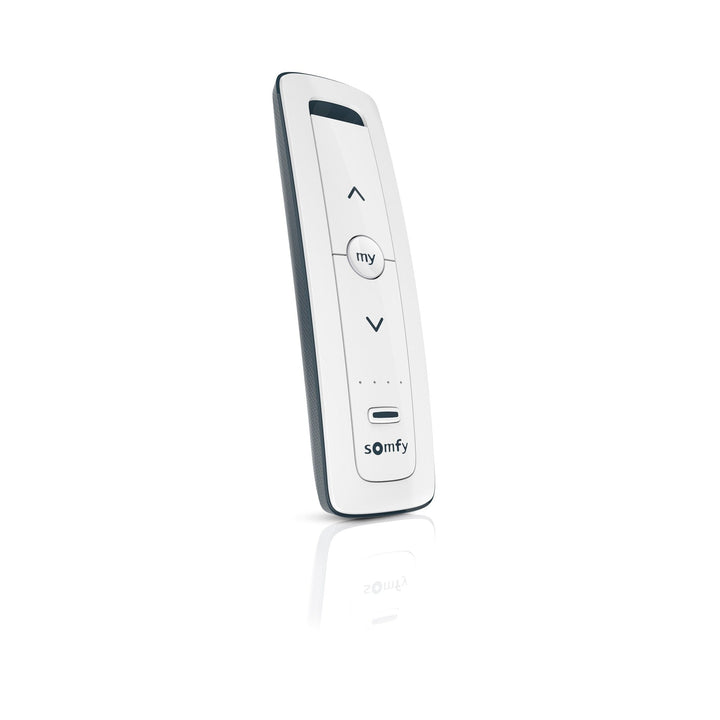
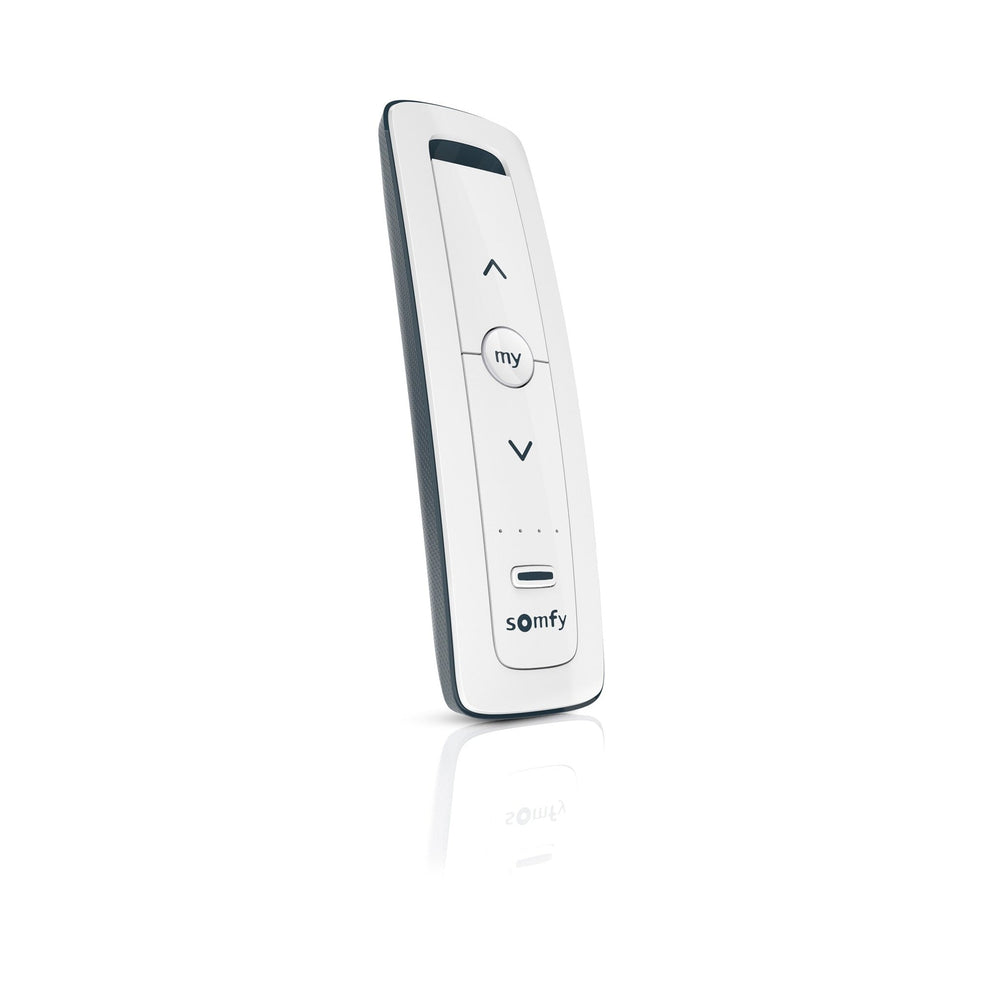
The Situo 1 and 5 instructions put the hold at about 5 seconds: place the covering, then press and hold MY to set the favorite.

ExampleCount while you hold on a Situo, and watch for the jog at the end.

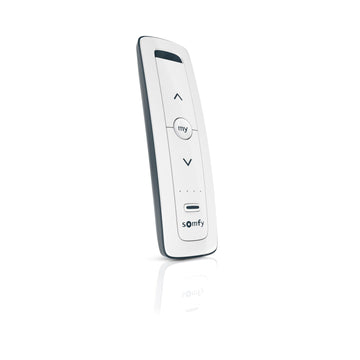
Somfy Situo 5 Channel RTS Pure Remote (1870575)
Situo 5 RTS Pure (1870575)

Step by step

Set the my position on a standard RTS motor

Somfy publishes these three steps for its standard RTS motors in user mode, with a paired control.

3 steps, one per screen.

SET MY: OVERVIEW1 MoveUP or DOWN2 Stopbrief MY3 Savehold MYuntil a jog

Step 1 of 3

Press UP or DOWN to send the shade toward the spot the owner wants.

The shade travels toward the spot.

Step 2 of 3

When the shade reaches the spot, briefly press MY.

The shade stops and stays still.

Step 3 of 3

Press and hold MY until the shade jogs.

A brief up and down movement. The my position is saved.

Check yourself

You stopped a Sonesse 40 RTS shade at the owner privacy height. What saves it as the my position?

Finish every module, pass the quiz, unlock 10% off

Module 3 of 5

Use, change and delete it

Owners call up the favorite every day and sometimes want it moved. After this module you can send a shade to my from anywhere, and delete or replace the position.

4 lessons, then a scenario check.
Use, change and delete it

Call it from anywhere

Press MY from any shade position and the covering travels to the my position. Somfy wants the shade still before you press.

ExampleA shade at the top limit drops to the my height with one press of MY.

USE MYmy position

Use, change and delete it

Moving? Press twice

If the covering is moving when you want my, Somfy says to press MY twice. The first press stops it and the second sends it to my.

Watch forOne press on a moving shade only stops it. Owners often think the favorite is lost.

MY ON A MOVING SHADEPress 1shade stopswhere it isPress 2shade goesto my

Use, change and delete it

Delete it

Briefly press MY to send the shade to the current my position. Then press and hold MY for 5 seconds. The shade jogs to confirm the deletion.

On the jobDelete the old stop before a new owner moves in and sets their own.

DELETE MY1 Gobrief press MYshade goes to my2 Holdpress and hold MY5 seconds3 Jogshade jogsmy is deleted

Use, change and delete it

Change it

Somfy files deleting and adjusting under one heading. Delete the old position, then move the shade and set the new one with the Module 2 steps.

ExampleAn owner wants the stop lower for summer: delete, lower the shade, then set it again.

CHANGE MYFirstdelete the oldmy positionThenset the newposition

Check yourself

An owner presses MY once while the shade is rising, and it stops partway instead of going to the favorite. What should they do?

Finish every module, pass the quiz, unlock 10% off

Module 4 of 5

Motors that do it differently

Battery motors, tilt blinds, drapery motors and RTS CMO awning motors each change part of the routine. After this module you can set a favorite on all four without guessing.

5 lessons, then a scenario check.
Motors that do it differently

Built-in battery motors

Li-ion WireFree motors such as the Sonesse 28, 30 and 40 WireFree set my with the same move, stop and hold. To delete, go to my and hold MY until a jog.

On the jobCharge the motor first, as Somfy asks.

LI-ION WIREFREESetmove, stop, hold MYDeletego to my, hold MYConfirmshade jogs

Motors that do it differently

The green light

On these Li-ion motor heads, Somfy says the green LED blinks once for each order from a paired remote and 5 times when a step is memorized.

Watch forFive green blinks at the head tell you the motor saved the step.

MOTOR HEAD LED1 blinkorder receivedfrom a pairedremote5 blinksstepmemorized

Motors that do it differently

Tilt 50 saves a slat angle

On a Tilt 50 WireFree RTS, my is a slat position. Tilt to the angle, press MY to stop, then press and hold MY until the blind jogs. Delete with a 5 second hold at my.

ExampleSave the slat angle that cuts glare.

TILT 50 MY1 TiltUP or DOWNto the angle2 Stoppress MY3 Savehold MYuntil a jog

Motors that do it differently

Drapery: move, then hold

Somfy lists two drapery steps for Glydea and Irismo: move the drapery with OPEN or CLOSE, then press and hold MY until it jogs. To delete, go to my and hold MY until it jogs.

On the jobSave the look the client likes by day.

DRAPERY MYSetmove with OPENor CLOSE, thenhold MYDeletego to my,hold MYuntil a jog

Motors that do it differently

RTS CMO gets two

An LT RTS CMO motor takes two intermediate positions. Somfy sets IP1 from the upper limit with MY and DOWN, and IP2 from the lower limit with MY and UP, each saved with a hold of MY.

Watch forStart IP1 at the upper limit and IP2 at the lower limit.

LT RTS CMOIP1from the upperlimit: MY andDOWNIP2from the lowerlimit: MY andUP

Check yourself

A client wants a daytime half-open stop on a Glydea ULTRA drapery. The drapery already sits where they want it. What do you press?

Finish every module, pass the quiz, unlock 10% off

Module 5 of 5

Pick a control with MY

Every Somfy RTS handheld and wall switch in this course can send shades to their favorite. After this module you can match the control to the room and use it on groups.

4 lessons, then a scenario check.
Pick a control with MY

Situo 1 and 5

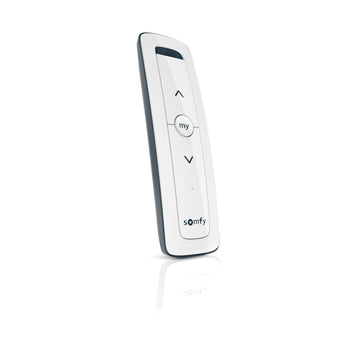
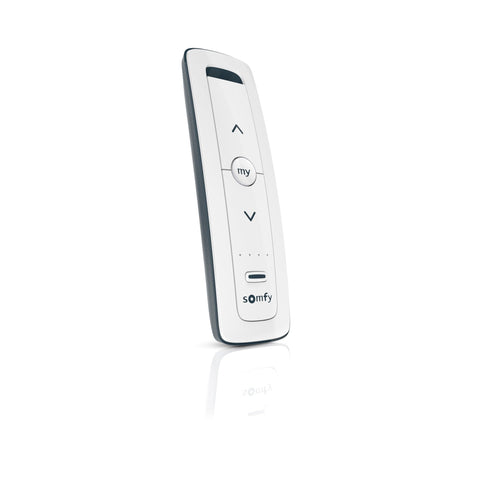
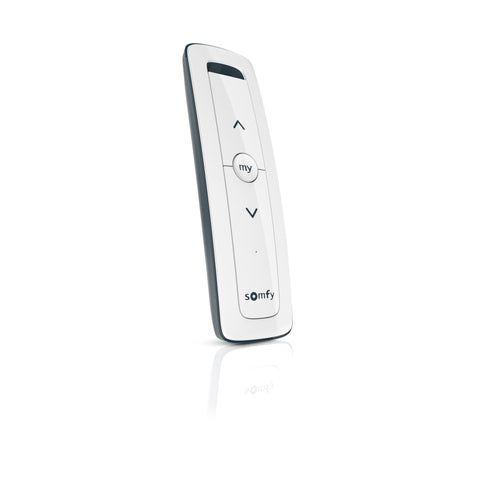
The Situo 1 runs one group of shades and the Situo 5 runs up to 5 groups. Both carry a STOP and my button between UP and DOWN.

ExampleA bedroom with one shade gets a Situo 1. A great room with five zones gets a Situo 5.

Somfy Situo 1 Channel RTS Pure Remote (1870571)
Situo 1 RTS Pure (1870571)

Pick a control with MY

Telis remotes

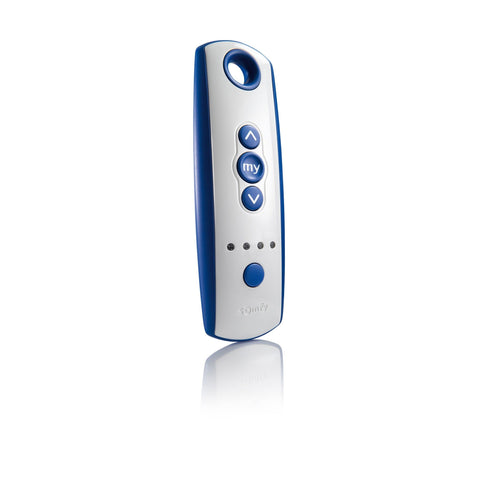
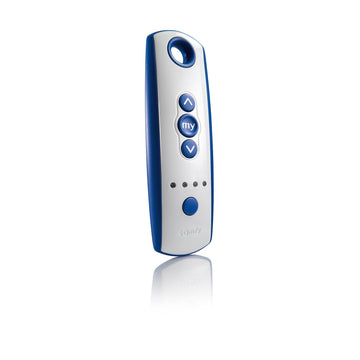
Somfy gives the Telis RTS handhelds the same MY button, from the Telis 4 to the 16-channel Telis 16 with its LCD screen.

On the jobPick the Telis 16 for a home with more zones than a 5-channel remote holds.

Somfy Telis 16 Channel RTS Pure Hand Held Remote (1811081)
Telis 16 RTS Pure (1811081)

Pick a control with MY

DecoFlex calls it STOP

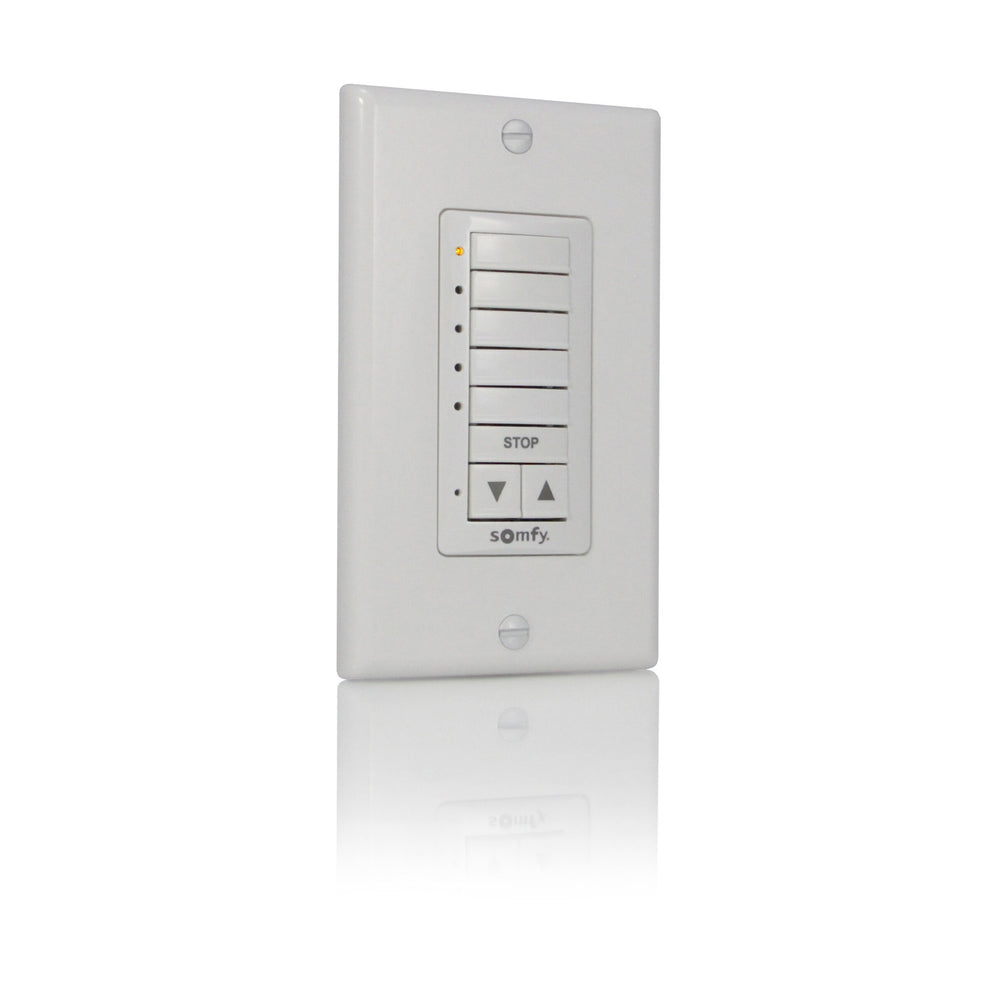
On a DecoFlex WireFree RTS switch, the STOP button stops a moving shade and sends a still one to the favorite position. Somfy makes it in 1 to 5 channel versions.

Watch forOwners look for a button marked MY. Show them the STOP button does the same job.

Somfy DecoFlex 5 Channel RTS WireFree Wall Switch White (1810813)
DecoFlex WireFree RTS 5-channel switch (1810813)

Pick a control with MY

Several channels at once

On the DecoFlex, press the channel buttons you want so their lights come on, then press UP, DOWN or STOP. Somfy says all selected channels run in a cascade.

ExampleSelect the three living room channels, press STOP, and each still shade heads to its favorite.

DECOFLEX STOPUPSTOPDOWNSelect channelsthen press STOP

Check yourself

A homeowner with a DecoFlex switch asks where the MY button went. What do you show them?

Final quiz

10 questions. Score 80% to pass.

Each question is a real job scenario, one per screen. Stuck? Tap the hint. You see the right answer and why right after you choose. Pass and you get a printable certificate.

10% OFF

Score 80% to unlock 10% off your first ShadeMotorsDirect order.

Question 1 of 10

On the job: A shade is lowering and the owner presses MY once.

What does the shade do?

Question 2 of 10

On the job: A homeowner presses MY on a still shade. UP and DOWN work fine.

Why does the shade stay put?

Question 3 of 10

On the job: You finish the limits but have not paired the remote yet.

Can the owner use the my position now?

Question 4 of 10

On the job: You stopped a Sonesse 40 RTS shade at the owner privacy height.

What saves it as the my position?

Question 5 of 10

On the job: During setup the shade makes a brief up and down movement.

What is it telling you?

Question 6 of 10

On the job: A shade is rising and the owner wants it at the my position.

What should they press?

Question 7 of 10

On the job: An owner wants the my position removed from a Sonesse 50 RTS shade.

What do you do?

Question 8 of 10

On the job: A Glydea ULTRA drapery sits at the half-open spot the client wants.

What do you press next?

Question 9 of 10

On the job: An awning runs on an LT RTS CMO motor and the client wants two stop points.

Can you give them two?

Question 10 of 10

On the job: Three living room shades sit on separate DecoFlex channels, all still.

How do you send all three to their favorites at once?

Almost done

Where should we send your certificate?

Your score shows on the next screen. If you pass, your certificate and 10% code go to this email. They come from Shade Motors School (school@shademotorsdirect.com). Check Promotions, Updates or Spam if you don't see them.

Your name prints on the certificate. You'll also get new course alerts and Somfy tips from ShadeMotorsDirect. Unsubscribe any time.

Parts used in this course

Genuine Somfy parts, 5-year warranty